

The admin user and staff
Administrator knowledge base
Step-by-step answers for the admin menu in VTA Panel. Screenshots use placeholder hostnames and addresses (panel.example.com, 203.0.113.10) — never copy real IPs, license keys or passwords from your server into docs.
Related guides: Administrator manual · FAQ · Installation · End-user manual.
Finding your way around
How do I open each admin area?
- Sign in as admin (or a staff user with the right permissions).
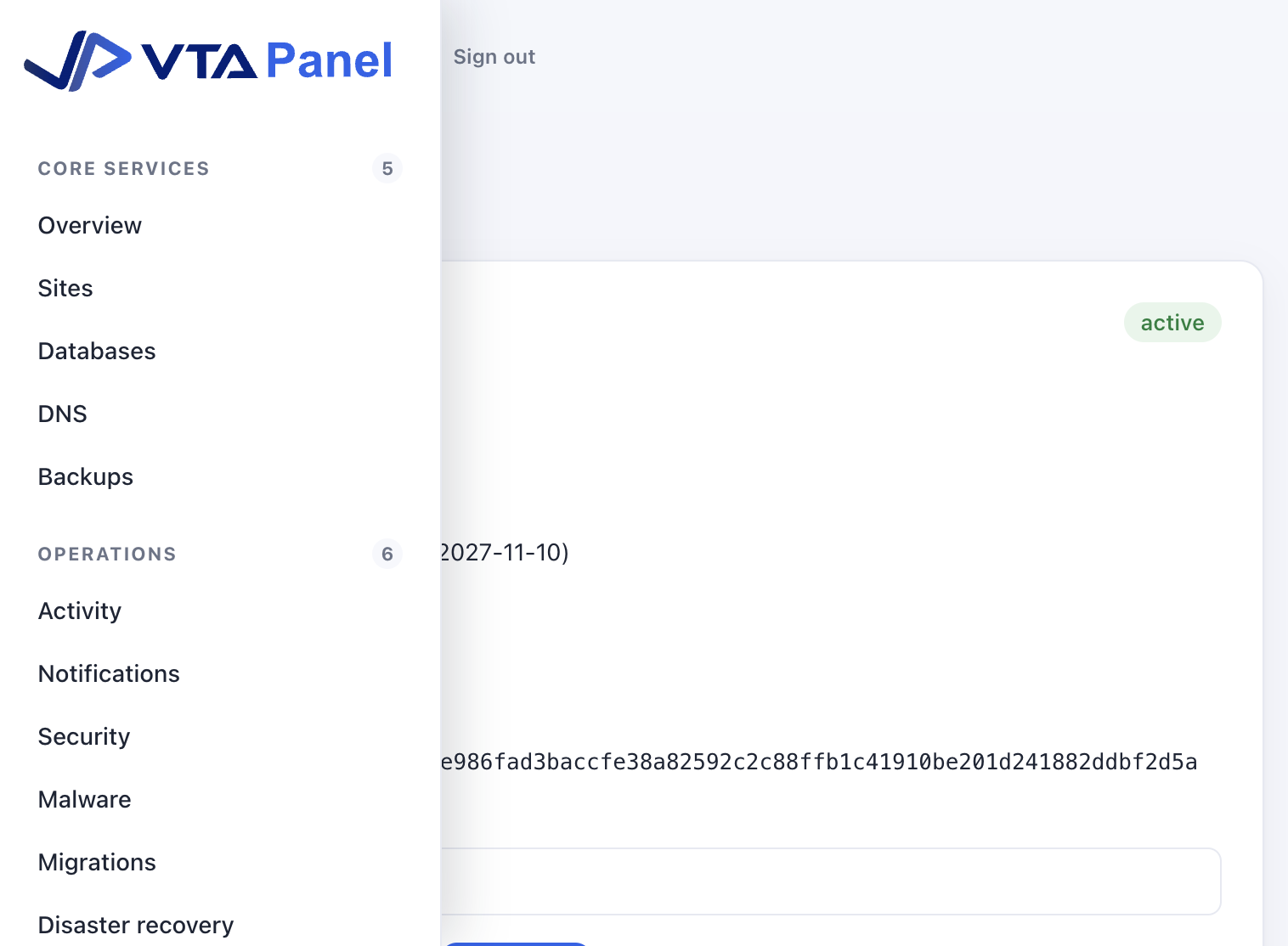
- Click the Menu (☰) control in the top bar.
- Choose a section under Core services, Operations, Infrastructure or Admin.
| Menu | What it is for |
|---|---|
| Overview | Capacity, attention, services, OS lifecycle |
| Sites | Websites, WordPress, PHP, Node, SSL, repair |
| Databases | Shared MariaDB / PostgreSQL / MongoDB |
| DNS | Name servers, template, zones |
| Backups | Site backup list and restores |
| Activity | Job history |
| Notifications | In-panel alerts |
| Security | Firewall, 2FA for admin |
| Malware | Server-wide malware settings and scans |
| Migrations | Import from other panels |
| Disaster recovery | Panel / mail DR archives |
| Database servers | Dedicated DB instances |
| Servers & regions | Cluster nodes |
| Server Settings | License, Repair, Redis, Varnish, updates |
| Email server | Postfix / Dovecot / Rspamd |
| Accounts | Customers, resellers, plans, usage |
| Billing | Plans, invoices, GST |
| Support | Tickets |
| Reports | Usage reports |
| API & webhooks | Tokens and hooks |
Overview
How do I check server health quickly?
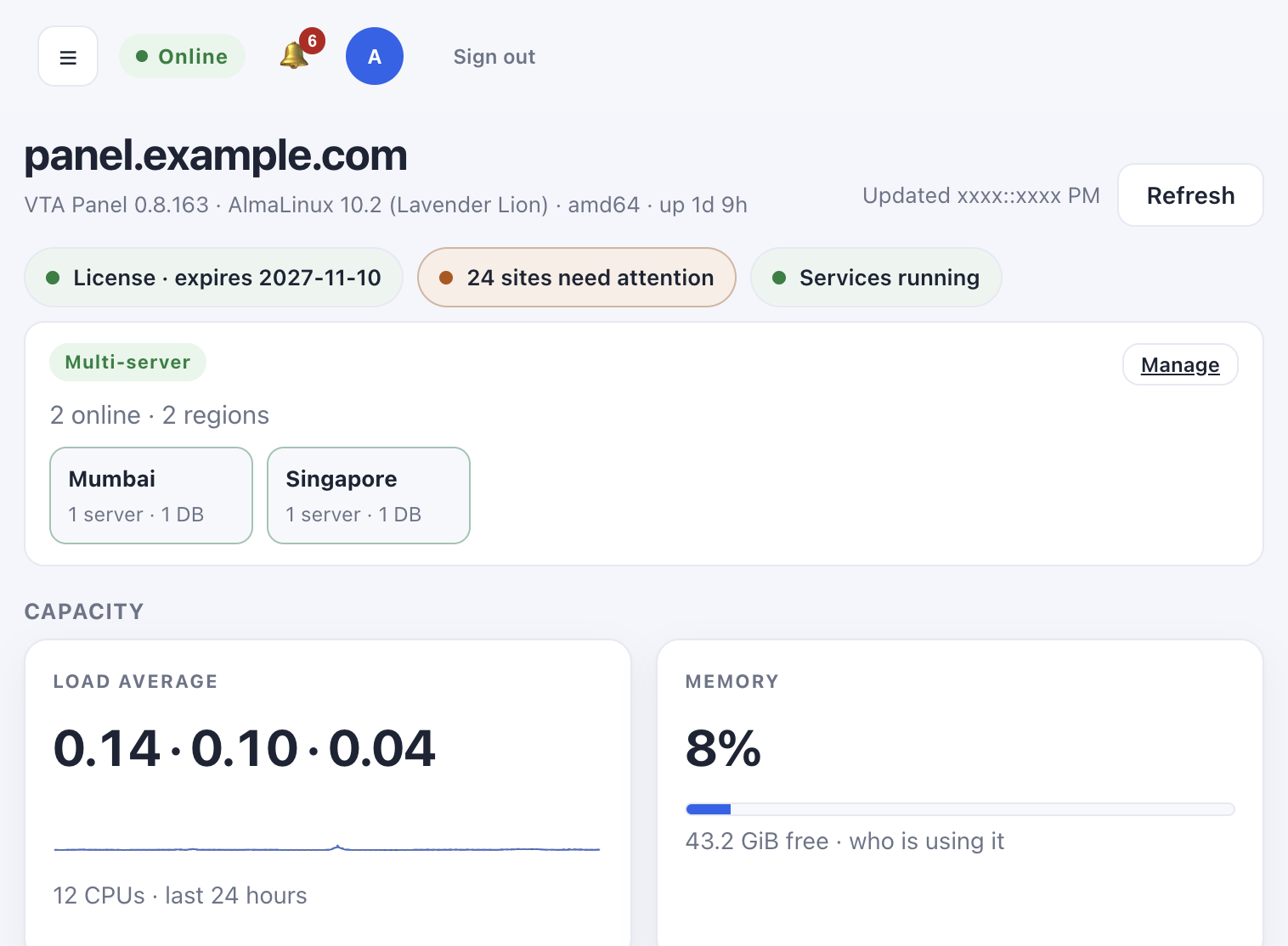
- Open Overview.
- Read the status chips (license, sites that need attention, services).
- Check Capacity (load, memory, disk).
- Use Services to restart, stop or disable a managed service if something is down.
- Click Refresh after a change.
How do I change the server time zone?
- On Overview, open Operating system lifecycle.
- Under Time zone, choose a Region, then a City.
- Confirm the Server clock line shows the expected zone.
- Click Save time zone (enabled only when the selection differs from the current zone).
How do I install OS security updates?
- Stay on Operating system lifecycle.
- Click Check now to refresh pending counts.
- Prefer Install security updates for routine patches.
- Use Install all updates only when you accept non-security package upgrades.
- If a reboot is required, use Reboot and confirm by typing
reboot.
Sites
How do I create a new site?
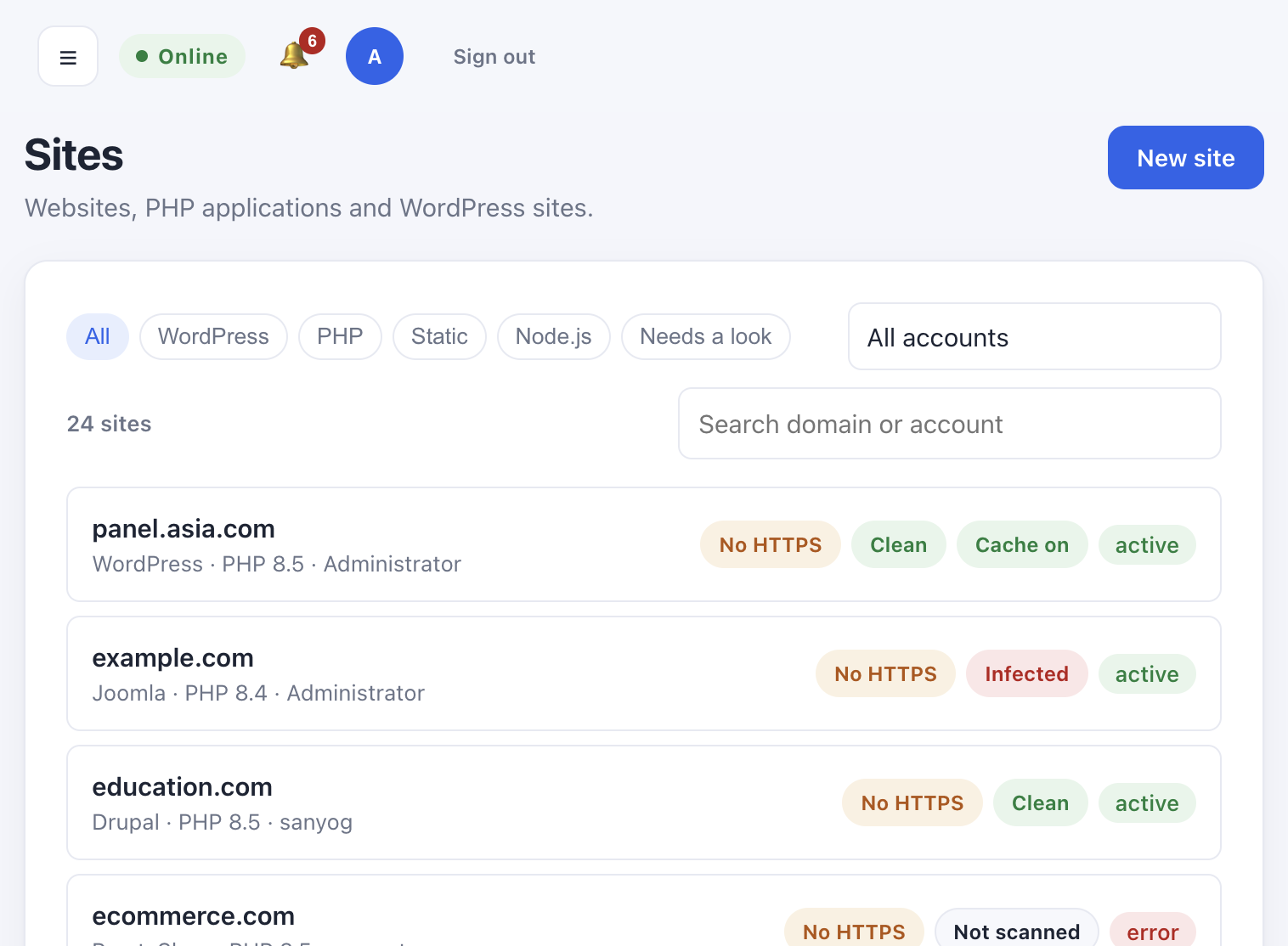
- Open Sites → New site.
- Enter the domain (without
www.). - Leave Also answer on www. checked if you want both hostnames.
- Choose type: WordPress, PHP, static or Node.js.
- Pick the account (or Administrator) and confirm.
- Watch Activity for the create job; save any one-time password from the secrets modal.
How do I filter sites that need attention?
- Open Sites.
- Click Needs a look (or use Overview → attention).
- Open a site and fix the flagged item (often No HTTPS, malware, or error status).
How do I issue free HTTPS for a site?
- Open the site.
- Confirm DNS A/AAAA for the domain (and www if enabled) point at this server.
- Use Check DNS, then Issue free certificate.
- Select the names to cover (apex / www as offered).
- Wait for the SSL job; the site should show HTTPS when done.
How do I set a preferred domain (www or apex)?
Like Plesk’s “Preferred domain” (301 redirect):
- Site must have been created with www enabled.
- Open the site → Configuration.
- On the web server card, set Preferred domain:
- None — serve both hosts
example.com— 301 from www → apexwww.example.com— 301 from apex → www
- Click Apply. The panel rewrites the active web stack (Nginx, Apache, Nginx+Apache, OpenResty, Caddy, OpenLiteSpeed).
How do I repair a broken site config?
- Open the site → Configuration (admin), or Server Settings → Repair for every site.
- Tick the pieces you need (web, SSL, webmail, permissions, DNS, mail, FTP, cron).
- Confirm Repair.
- Check Activity for the job log. Site files are not deleted.
How do I change PHP version or PHP settings?
- Open the site → Configuration.
- Use the PHP version control on the site (if the version is installed under Server software).
- Under PHP settings, adjust limits (admins) or display_errors (site owners).
- Click Apply / Save.
Accounts
How do I create a customer account?
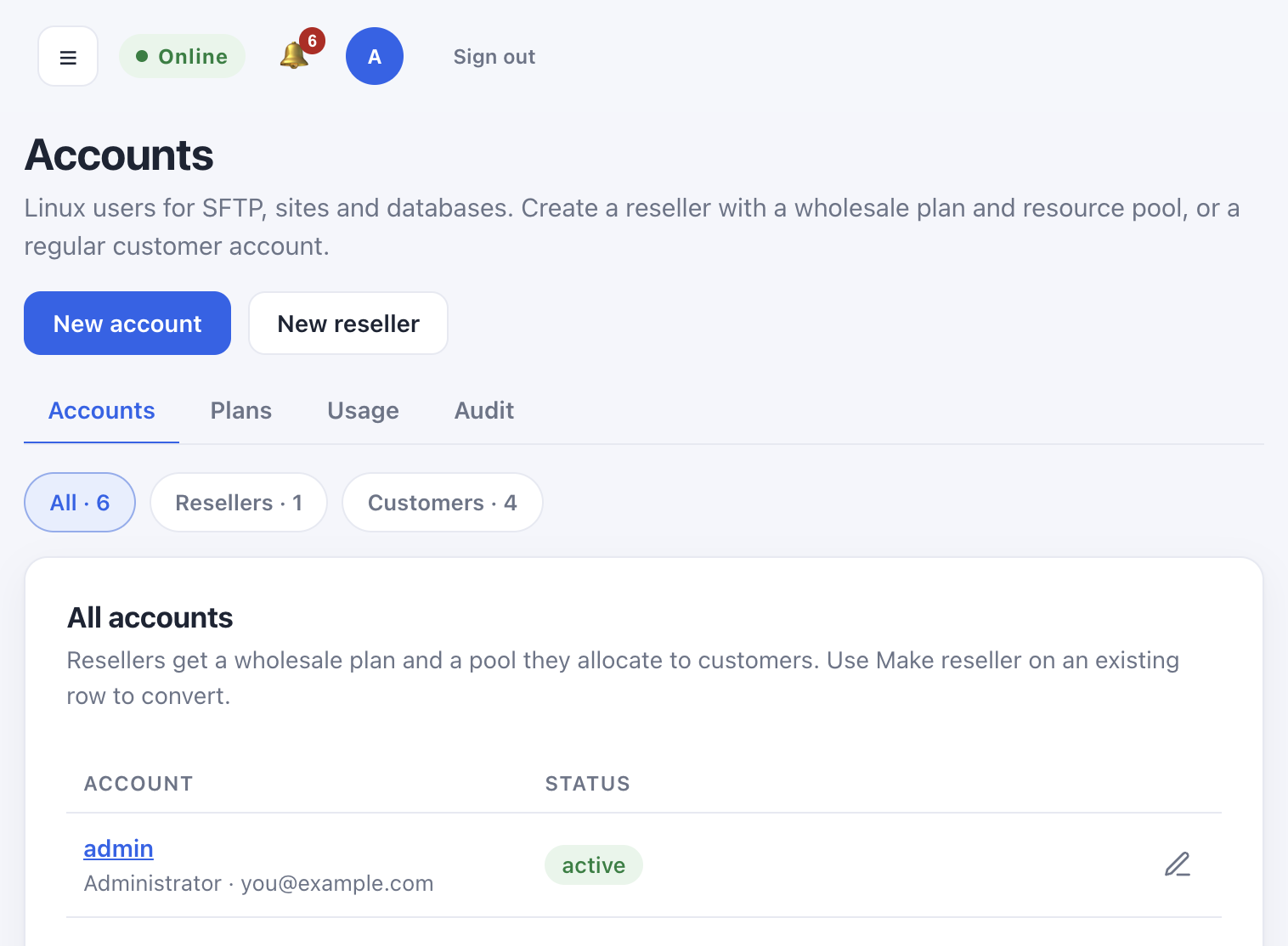
- Open Accounts → New account.
- Enter username, email and plan.
- Confirm; copy the one-time password from the credentials modal.
- Optionally Login as to verify the customer view.
How do I create or convert a reseller?
- New reseller, or open a customer → Make reseller.
- Assign a wholesale plan and resource pool.
- Use Plans, Usage and Audit tabs under Accounts for reseller operations.
How do I suspend or delete an account?
- Open Accounts.
- On the row: Suspend (keeps data, blocks access) or Delete (removes the account after confirmation).
- Prefer suspend when you may restore access later.
Databases
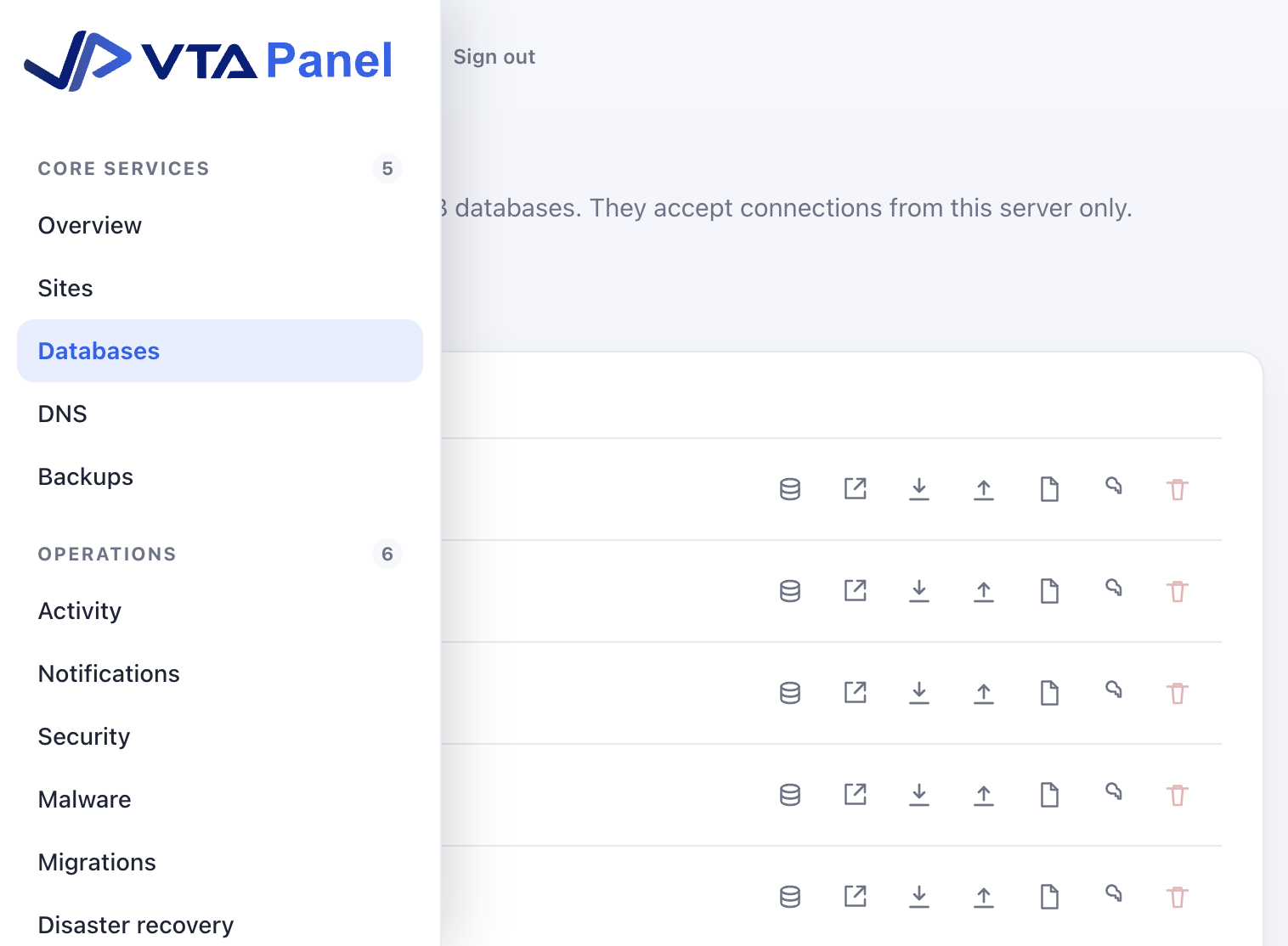
How do I create a shared database?
- Open Databases → New database (or create from a site’s Database tab).
- Choose engine: MariaDB, PostgreSQL or MongoDB (must be installed).
- Enter a short name and owner account/site.
- Save the password shown once in job secrets.
How do I rotate a database password?
- Open the database.
- Click New password.
- Copy the secret from the job modal; update the application config.
DNS
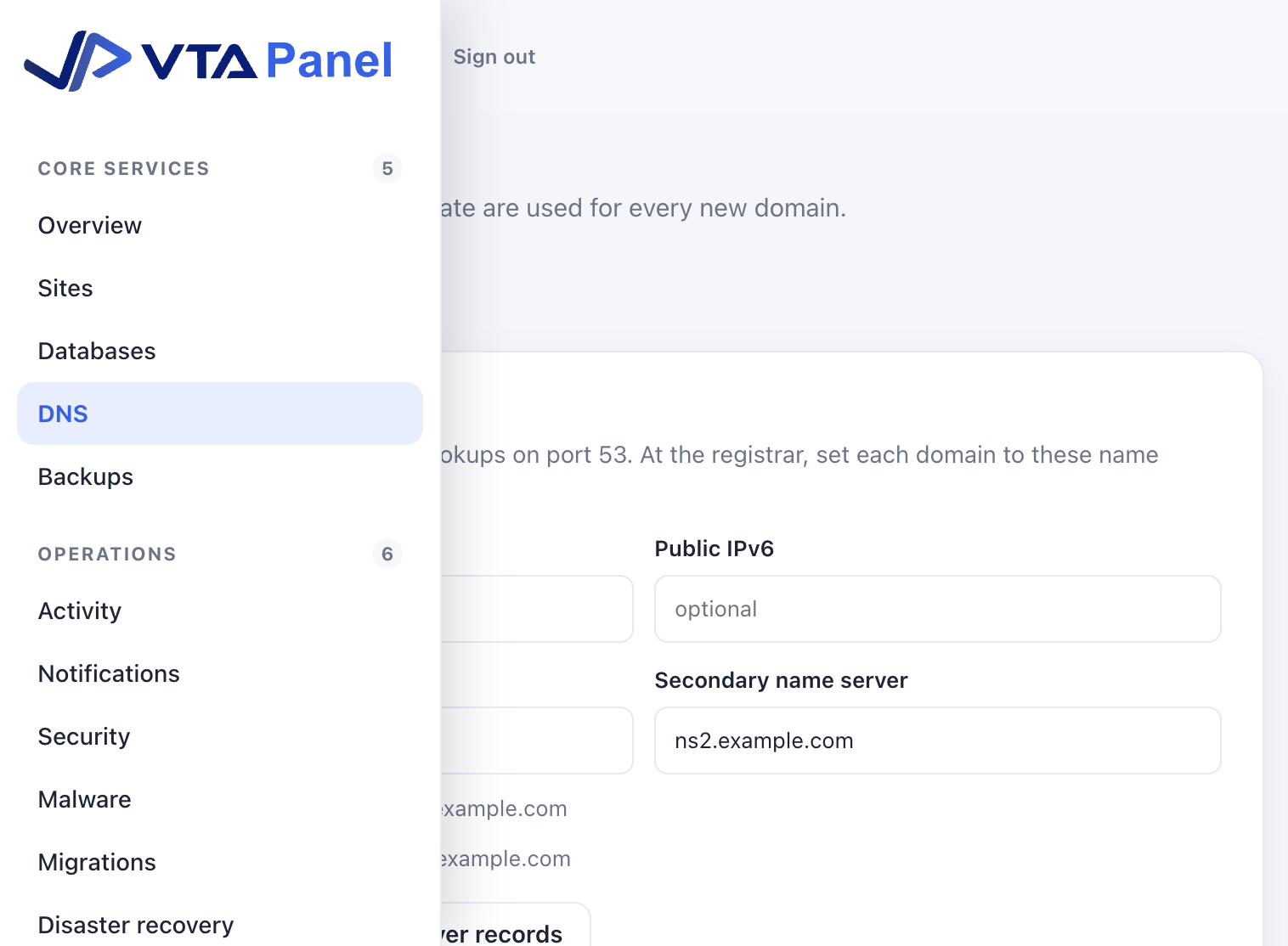
How do I set name servers for this panel?
- Open DNS.
- Set Public IPv4 (and IPv6 if used).
- Set primary / secondary name server hostnames (for example
ns1.example.com). - Click Save, then Register name server records when the parent zone is managed here.
- At each domain’s registrar, point NS to those names.
How do I add a DNS zone?
- DNS → Add domain (or Import zone).
- The default DNS template seeds A/www and related records.
- Edit records as needed; changes publish to BIND (or Cloudflare when connected).
How do I connect Cloudflare?
- Server Settings → DNS: paste a server-wide API token with Zone DNS Edit, or
- On a customer Account page, connect their own Cloudflare token.
- On a zone, use Publish to Cloudflare / sync when offered.
Server Settings
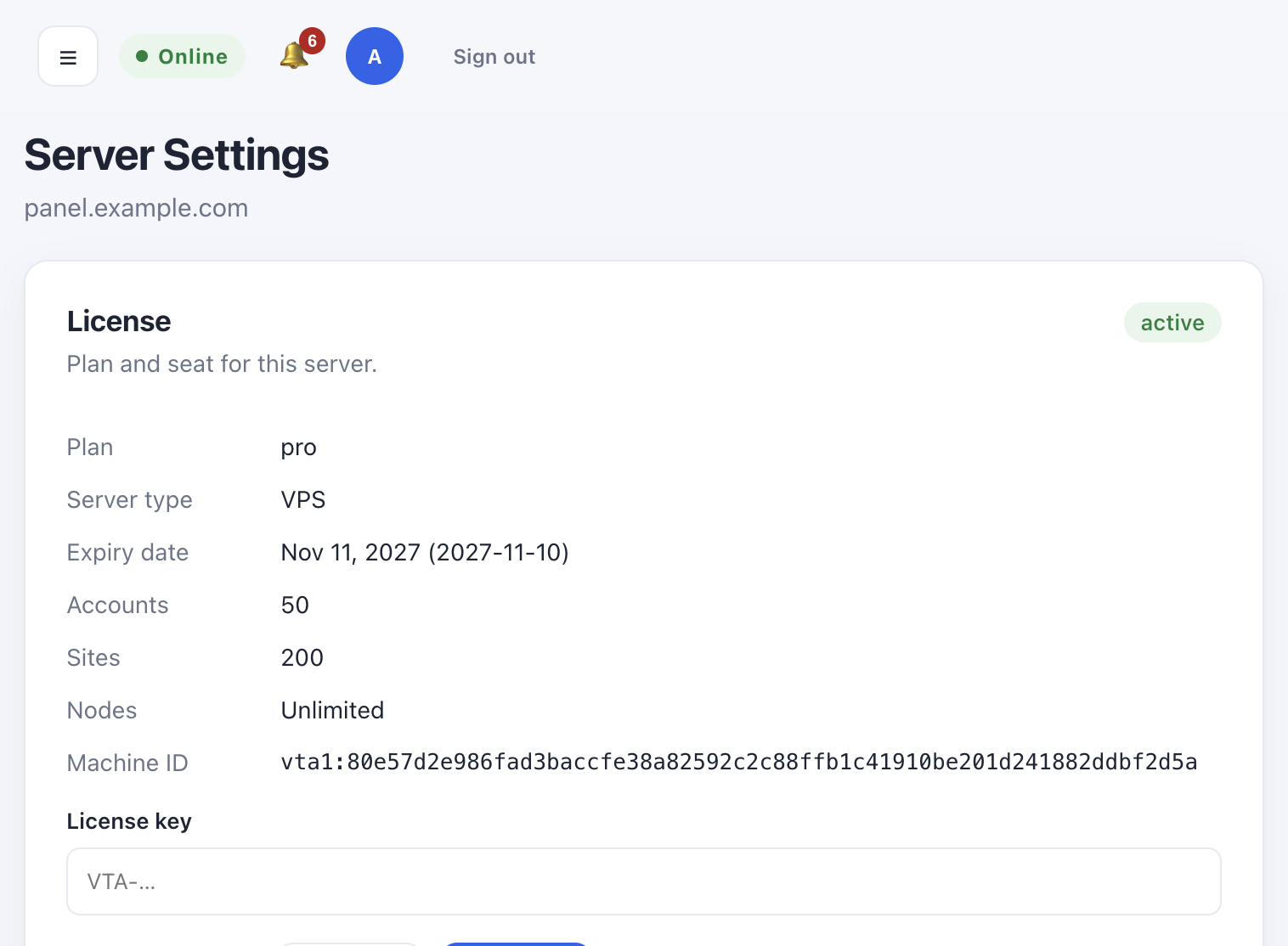
How do I activate or refresh the license?
- Open Server Settings → License.
- Paste the license key (starts with
VTA-). - Click Activate or Refresh.
- Confirm plan, expiry and seat counts.
How do I open Server software?
- Server Settings → Server software → Open, or go to
#/software. - Use tabs: Web server, PHP, Extensions, Databases, Node.js.
How do I repair every site on the server?
- Server Settings → Repair.
- Tick tasks (web, SSL, webmail, permissions, DNS, mail, FTP, cron).
- Click Repair all sites.
- Follow the job under Activity.
How do I set Redis authentication?
- Server Settings → Redis.
- Choose Require a password (recommended) or No password.
- Leave the password blank to generate one, then Save authentication.
- Site Redis cards show the shared password when Redis is on for that site.
How do I update the panel from the UI?
- Server Settings → Panel updates.
- Check now if needed.
- When an update is available, use Update now (the panel restarts briefly).
How do I set notification SMTP?
- Server Settings → Notification email (SMTP).
- Enter host, port, security, username, password and From.
- Send test, then Save.
Server software
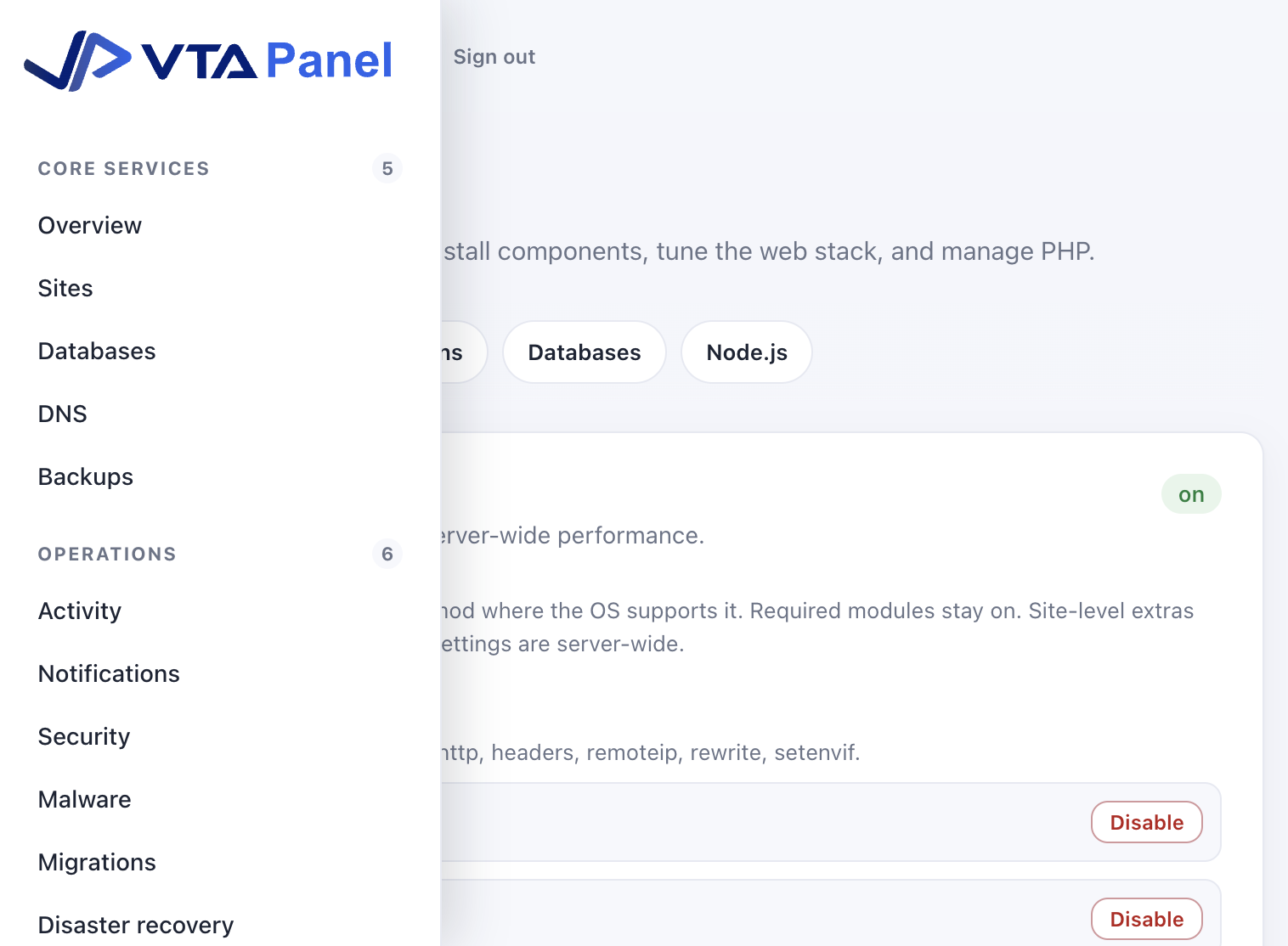
How do I install another PHP version?
- Open Server software → PHP.
- Click Install next to the version.
- On each site, switch PHP under the site page / Configuration.
How do I enable an Apache module or change web performance?
- Server software → Web server.
- Under Modules, Enable / Disable optional modules (required ones stay on).
- Under Performance, pick a preset (Balanced, Throughput, Low memory) or Custom, then Apply performance.
How do I install PostgreSQL or MongoDB after install?
- Server software → Databases.
- Install the missing engine.
- Create databases under Databases or a site’s Database tab.
How do I manage Node.js app versions?
- Server software → Node.js.
- Add or remove major versions; set the container image if you use a mirror.
- Site apps pick a version when created.
Email server
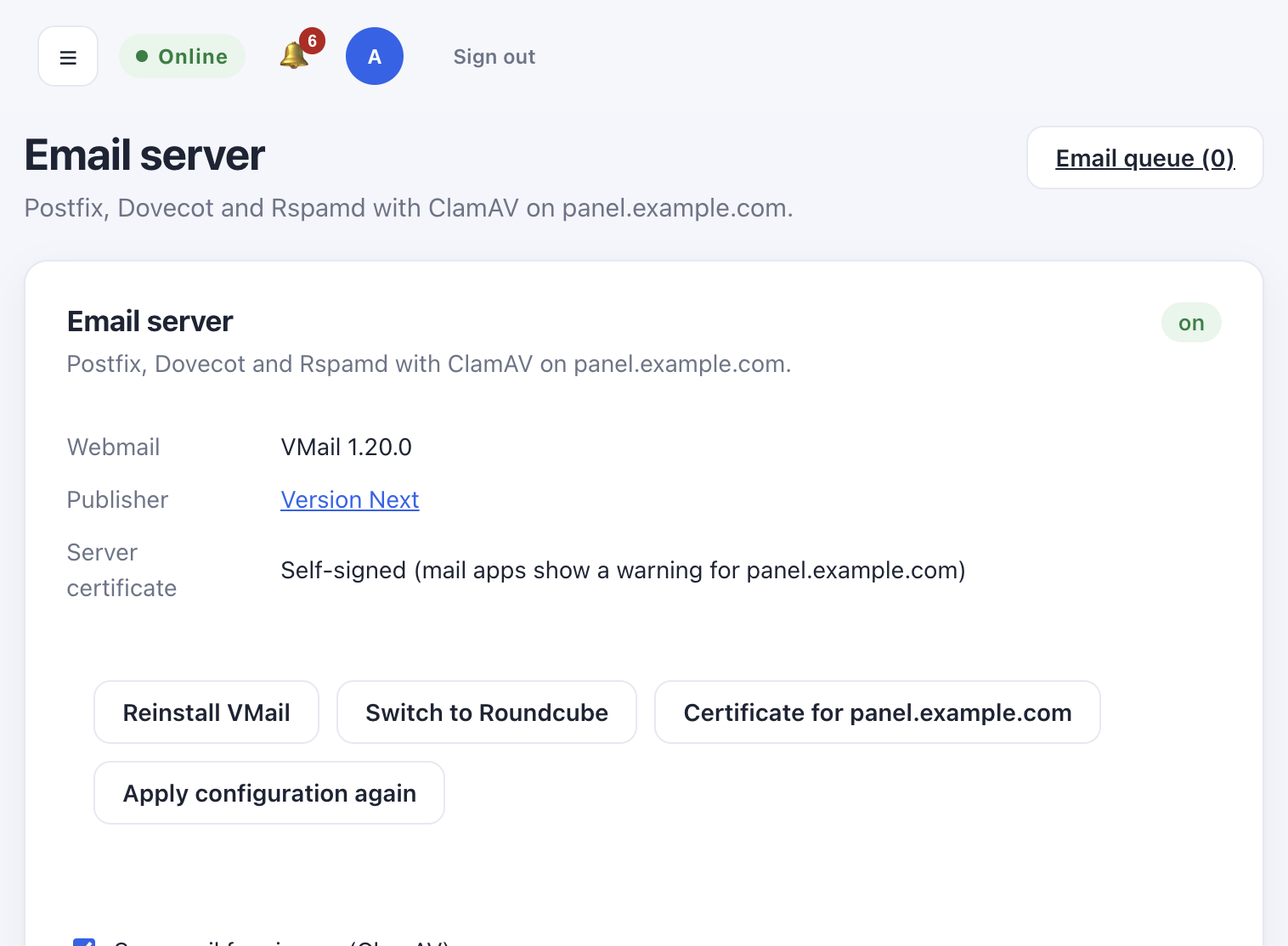
How do I confirm mail is installed and working?
- Open Email server.
- Review Postfix / Dovecot / Rspamd status.
- For a domain: site or Email → set up the mail domain, issue the mail certificate, publish DKIM/SPF/DMARC DNS.
- Open webmail at
https://webmail.<domain>/when configured.
How do I recreate mail maps after a manual change?
- Prefer Server Settings → Repair with Mail (and Webmail if needed).
- Or change a mailbox setting in the UI so the panel rewrites tables.
Security, malware and firewall
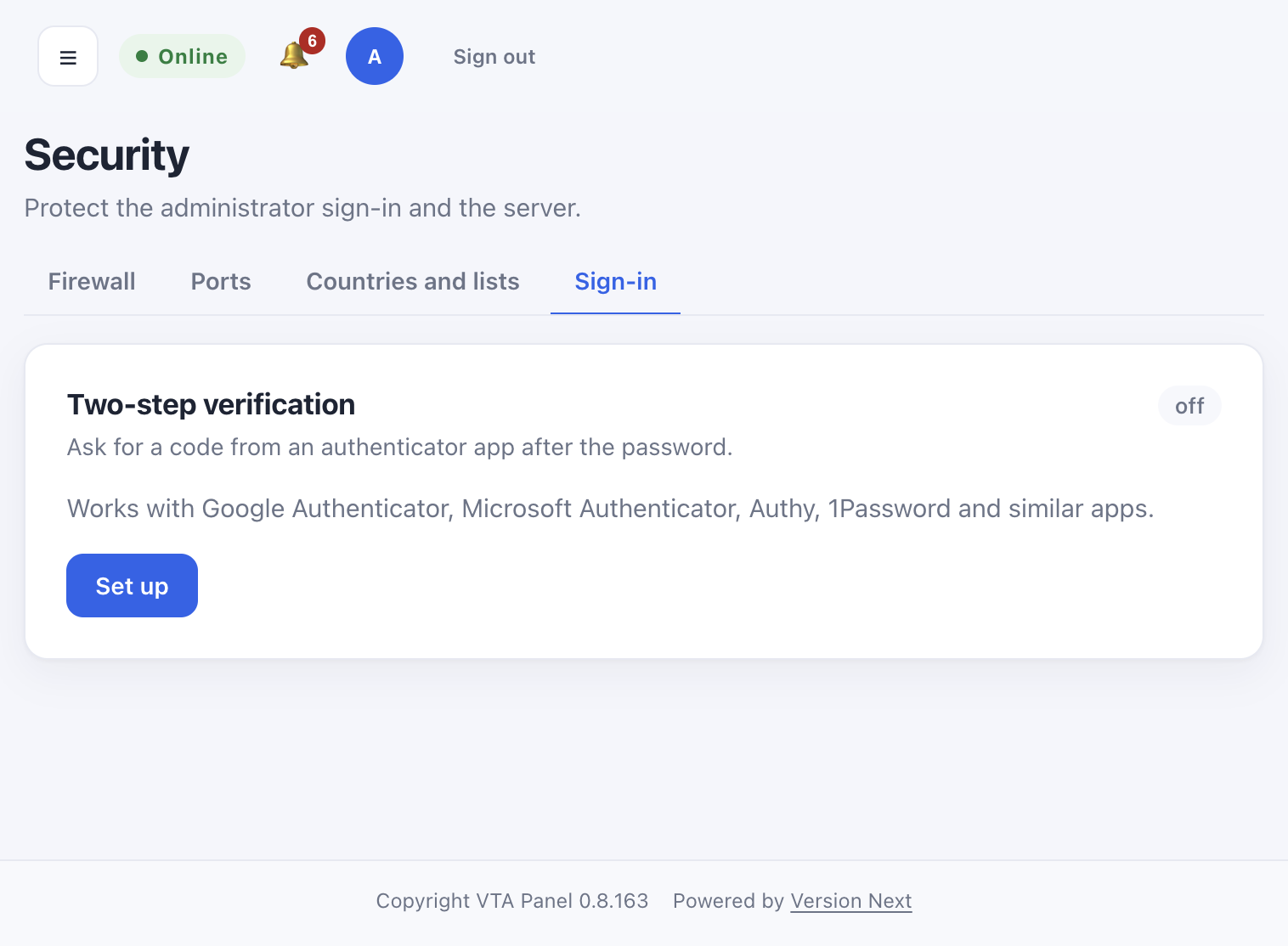
How do I turn on admin 2FA?
- Open Security (
#/accountfor the admin user). - Open the Sign-in tab.
- Under Two-step verification, click Set up, scan the QR code, store recovery codes offline, then confirm.
- If locked out as root:
sudo vtapanel passwd --disable-2faorsudo vtapanel login.
How do I scan for malware?
- Open Malware for server-wide options, or a site → Security.
- Run a scan; quarantine or restore from findings as needed.
- Mark false positives as ignored when appropriate.
How do I allow a port on the firewall?
- Open Security → Firewall (also Ports and Countries and lists).
- Add the port or service the panel manages.
- Do not close the panel port (usually 8443) or your current SSH port.
Backups and disaster recovery
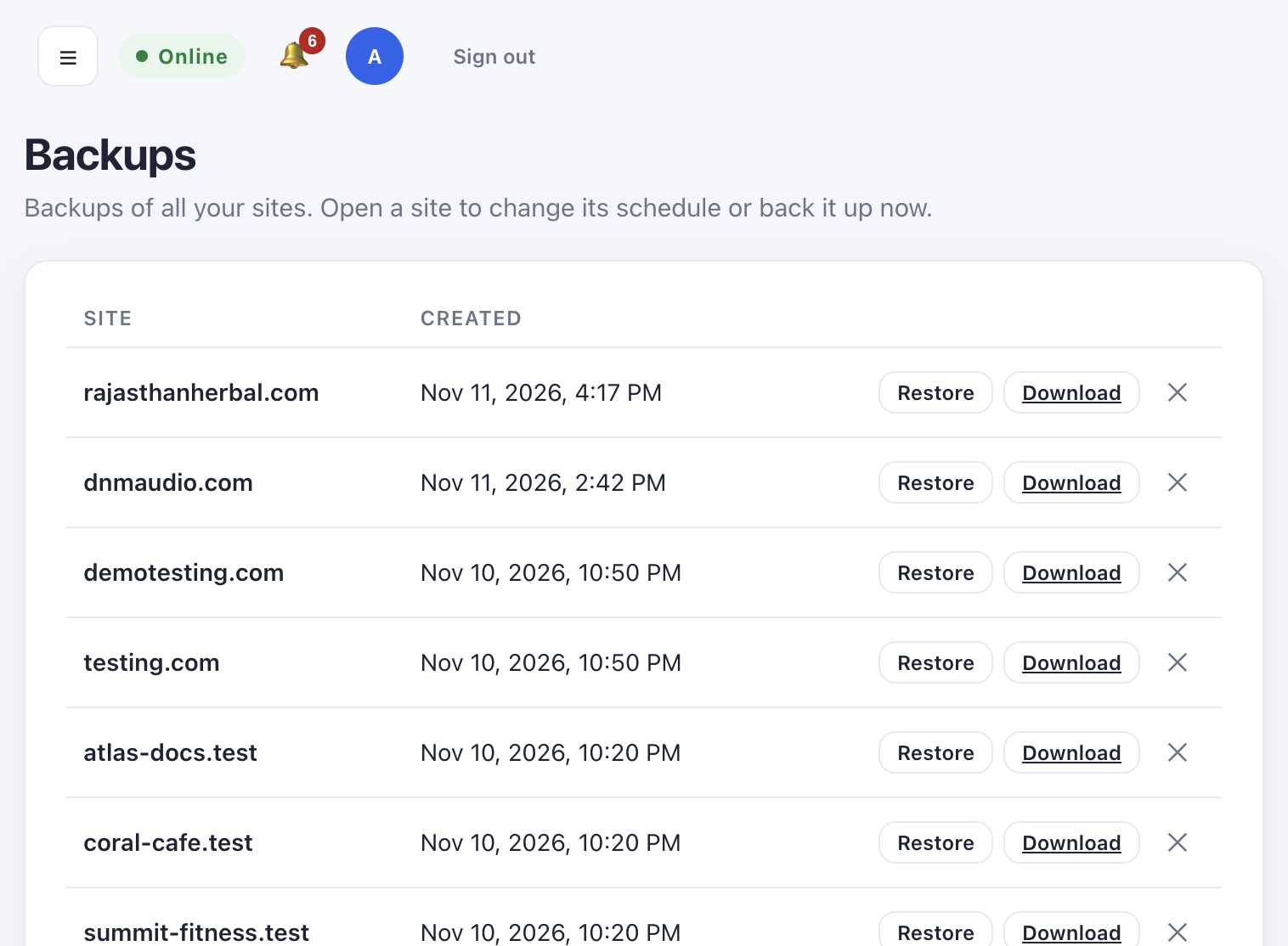
How do I restore a site backup?
- Open Backups, or the site → Backups.
- Choose a backup → Restore (confirm).
- Watch Activity; a pre-restore copy is kept when the panel supports it.
How do I set off-server backups?
- Open Disaster recovery (and related offsite settings).
- Add an S3-compatible destination and encryption key as documented in the admin manual.
- Run a test restore on a non-production copy when possible.
Billing, support, reports and API
How do I change a customer’s plan?
- Accounts → customer → Plan, or Billing plans.
- Apply the plan; limits update via a job when required.
How do I create an API token?
- Open API & webhooks.
- Create a panel API key or personal token with the least scopes needed.
- Store the secret once; it is not shown again.
How do I review tickets or reports?
- Support for tickets.
- Reports for usage summaries.
- Activity for background jobs that apply changes.
Servers & regions
How do I add another region or node?
- Open Servers & regions (also linked from Overview when multi-server is on).
- Add a node with the required roles (web, DB, …).
- Assign sites or standby as documented under cluster / HA.
Safe screenshot and support habits
- Prefer placeholder domains (
example.com) and documentation IPs (203.0.113.0/24) in public docs. - Never paste license keys, Redis passwords, DB passwords or API tokens into tickets or screenshots.
- After sharing a temporary admin password for documentation, change it under Security /
vtapanel passwd.